Sunday, 6 April 2014

Copy And Extract Text From Images With GT Text [Quicktip]


When you are dealing with task involving images, there comes a situation where you find text or quotes on an image you wish you can just copy down to paste somewhere else. But the evident problem is, you can’t just copy text printed on an image, can you?


GT Text


Rather than retype every single letter in the image, which won’t work if there’s a lot to copy, there is a way to copy text straight from images, use GT Text. GT Text is a freeware for PC made to help you extract text from images.


Copy Text From Images With GT Text:


1. To start copying text from images, go to the GT Text download page and download the latest of many versions available.

Download GT Text


2. When the download is complete, run the installer and proceed with the installation process.


Install GT Text


3. Now when you are ready, run the application from your computer and the file explorer will appear. Select the type of image files you want to open, and browse the location. GT Text supports TIFF, JPG, GIF, BMP and PNG file formats. After selecting the images, click Open.


 Open file


4. GT Text will open the image. Now click on the ‘Area Text OCR’ button as shown below.


Area Text OCR


5. With your cursor active, select the text area you want to copy and release the mouse.


Highlight


6. Releasing the mouse will load a text prompt as per what’s highlighted, now click Continue to copy the text to clipboard.


Copy Text


7. Once copied, open your Notepad or any other note-taking application and paste.

Paste text


Other Features:

To copy every text without highlighting, simply press Ctrl + F and GT Text will extract all available text for you. Alternatively, you can go to Tools > Copy Text From > Full image to do the same.

 Full Image


The default language used is English, but you can add other languages too. To add other languages,

1. Go to File > Preferences.


Preferences


2. Click on Add languages.

 Add language


Conclusion:                                                                      


With this simple freeware for your Windows PC, you can now copy text easily from any image you like. Although there are not many functions found on the application, copying text from image is already a great help by itself.


Sunday, 30 March 2014

How to Compress Large Files to Small size


Asalam-o-Alaikum Friends!!!

Dosto ap sub kase hain Umeed Kerta hou ap sub Teek Taak honge,, Dosto Chalte hai  apne Tutorial ki taraf, Aj mai ap ko is Tutorial k zarye btao ga k Big File ko Winrar k zarye kase Highly Compressed kia jata hain. Highly Compressed karne se pehle ap apne PC pr jitne Program Run hai wo sub closed kar dain or System ko bilkul Free kar de  Pir Winrar open kare Task Manager main jakar is ki Property Real Time ker de es k leye ap k pass Winrar Full Version hona zarori ha, Trail bhi Work kerta But kabi kabi Teek se Compress nahi kerta os k bd Task Manager ko close kerde or Winrar ko Open rehne de. os k bd Screen shot Follow kare baki tarika Screen Shot k zarye bta dia hai.

I hope ap logo ko ye Tutorial Passand aye ga.


How to Recover Hidden files on USB and Memory card


Asalam-o-Alaikum Friends!!!

Dosto ap sub kase hain Umeed Kerta hou ap sub Teek Taak honge,, Dosto Chalte hai  apne Tutorial ki taraf, Aj mai ap k leye aik boht achi Tip lekar aaya hou, aksar esa hota hai k USB se data ghaib hojata hai or os ki jaga shortcut ban jate hai os k leye ap es tip se faida uta sakte hain or Hide data wapis Recover kerskte hai.
Sub se pehle "Command" open kare os k b Niche dia howa code copy ya Command mai type ker k enter kare ap ka tamam USB data Show hojaye ga.


Note: Code mai Jaha "G" lika ha waha USB Drive ka alphabet type kare ge.


Code:  attrib -r -a -s -h "g:\*" /s /d


I hope ap logo ko ye Tutorial Passand aye ga.

 .

How to Download Google Apps


Google Apps


Asalam-o-Alaikum Friends!!!

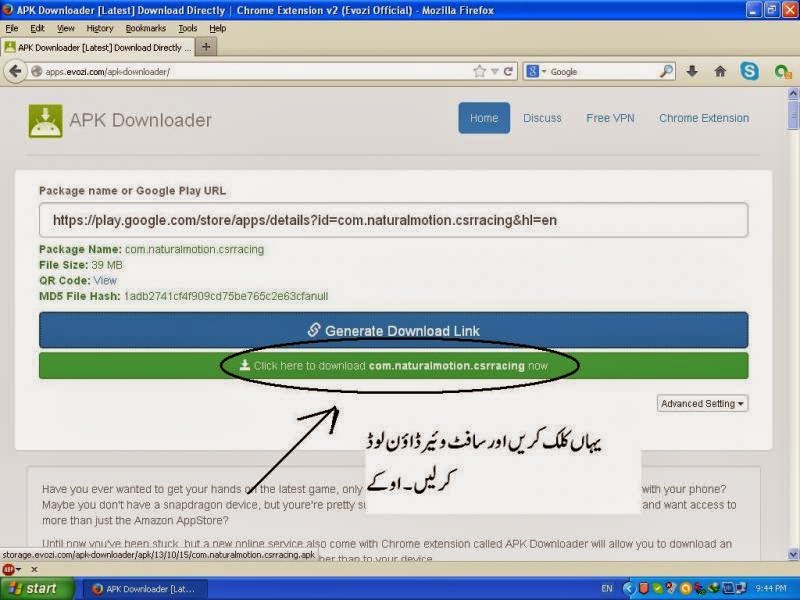
Umeed Kerta hou ap sub Khairyet se honge, toh Dosto aj mai ap ko btao ga k ap apne PC se "Google Play" se ap Software kase Download karskte hain.

Screen Shot Follow kare or sub se Phle "Google Play" open kare.


Saturday, 8 March 2014

Complete Review of Ninite Software


nLite:


Ninite is a Web service that consolidates applications into a single installer for you to download. Simply pick the apps you want, then Start your customized installer. Ninite works in the background 100 percent hands-free.
     
Ninite currently includes 58 freeware and shareware applications in 12 categories: Developer Tools, Compression, Utilities, Web Browsers, Messaging, Media, Imaging, Documents, Anti-Virus, Runtimes, File Sharing, and Other.


Complete Review of Ninite Software


How to Change Facebook Theme in Urdu and Hindi


This post would help the visitor if they searching about "How to change facebook theme and style" if you want to change different look on Facebook. Every people knows that facebook is the No. 1 social networking site and daily more and more people are joint to this network. At that time many people are using there facebook account through phones / mobiles, smartphones and even from tablets so if you are not happy with Facebook current theme and want to see something unique color and text then this post surely help you. if you are not happy with facebook by default look then now you can change its look, themes, change background, text style easily on Mozilla Firefox add-ones and google chrome extension.


Conclusion :


Facebook is a very nice platform where people are engage each other and sharing their experience, website post, new services, updates. So many people are working day by day in this site and their eyes not happy to see Facebook by default theme. I hope this tutorial post surely help them to change their facebook style and theme.

Friday, 7 February 2014

How To Change Your Mouse Cursor Into Pakistan Flag

How To Change Your Mouse Cursor Into Pakistan Flag


Asalam-o-Alaikum Friends!!! To day I am Gonna Tell You That How To Change Your Cursor Into Pakistan Flag !!

It's Very Easy Follow These Steps Respectively

Fist Download Pakistan Cursor Click Here To Download(It's Not Too Large It's Just 21Kbs)


  • Save Attached File in your PC 
  • Go to Start menu + Settings + Control Panel 
  • Double click on Mouse Icon 
  • Go in Pointer
  • Click on Browse menu and select saved File (PAKISTAN.ani)
  • Click Apply and Ok.


We Have Finished Now.. Chek Your Cursor Now It has changed into Pakistan Flag !!


♥♥ Pakistan Zindabad ♥♥


" Prewiew Is Given Below !! "