Showing posts with label JSON Feeds. Show all posts

Saturday, 5 December 2015

Extract YouTube Thumbnails From Blog Posts via JSON

Extract YouTube Thumbnails from Blog posts

Today's tutorial is first time shared online Alhamdulillah that will discuss the most advanced and unique technique of extracting thumbnails from a YouTube Video Iframe embedded inside your blog posts. Our technique is unique because it will ignore all images inside the post and will only pull out the Iframe Image provided by YouTube and will display it as the featured thumbnail. If no video Iframe was found only then the existing third party images inside the blog post will be considered to play a thumbnail role. We have already discussed the manual method of displaying YouTube thumbnails in blogspot posts and today we will discuss the dynamic method to automatically do the job for you. Although Blogger now provides a default link to YouTube thumbnail in its JSON feed API but due to its low resolution we still need a better dynamic method to do the job for us. Lets get to work!

Note: Click the Button below to see full list of topics under discussion.

Topics List

Location of Thumbnail URL

We will use the second method that we discussed in part#9 to extract an image from inside the post content using the path:

json.feed.entry[i].content.$t

Kindly go through part#9 to know the basic technical details

Display YouTube Featured Thumbnails in Recent Posts Widget

Now comes the coding part. We will use the exact same script that we have shared in part#10. Major modifications made have been highlighted in Purple with white text.

<!-- ######### Writing Callback Function ############# -->
<script type="text/javascript">
//----------------------------Defaults
var ListBlogLink = window.location.hostname;
var ListCount = 5;
var TitleCount = 70;
var ListLabel =" ";
var ChrCount = 80;

var ImageSize = 100;

//----------------------------Function Start
function mbtlist(json) {
document.write('<ul class="mbtlist">');
for (var i = 0; i < ListCount; i++)
{

//-----------------------------Variables Declared
var listing= ListUrl = ListTitle = ListConten = ListContent =ListImage =thumbUrl =sk = "";
//----------------------------- Title URL
for (var j = 0; j < json.feed.entry[i].link.length; j++) {
if (json.feed.entry[i].link[j].rel == 'alternate') {
break;
}
}
ListUrl= "'" + json.feed.entry[i].link[j].href + "'";
//----------------------------------- Title Stirng
if (json.feed.entry[i].title!= null)
{
ListTitle= json.feed.entry[i].title.$t.substr(0, TitleCount);
}

//----------------------------------- Content Check

ListConten = json.feed.entry[i].content.$t;
ListContent= ListConten.replace(/(<([^>]+)>)/ig,"").substr(0, ChrCount);

//------------------------------------ Thumbnail Check

// YouTube Thumbnail Search

if (json.feed.entry[i].content.$t.match(/youtube\.com.*(\?v=|\/embed\/)(.{11})/) != null)
{
var youtube_id = json.feed.entry[i].content.$t.match(/youtube\.com.*(\?v=|\/embed\/)(.{11})/).pop();
if (youtube_id.length == 11) {
        var ListImage = "'//img.youtube.com/vi/"+youtube_id+"/0.jpg'";
        }
}

// Blogger Default Thumbnail Search

else if (json.feed.entry[i].media$thumbnail)
{
thumbUrl = json.feed.entry[i].media$thumbnail.url;

sk= thumbUrl.replace("/s72-c/","/s"+ImageSize+"/");
ListImage= "'" + sk.replace("?imgmax=800","") + "'";
}

// Support For 3rd Party Images
else if (json.feed.entry[i].content.$t.match(/src=(.+?[\.jpg|\.gif|\.png]")/) != null)
{
ListImage json.feed.entry[i].content.$t.match(/src=(.+?[\.jpg|\.gif|\.png]")/)[1];
}

else
{
ListImage= "'https://blogger.googleusercontent.com/img/b/R29vZ2xl/AVvXsEhpXmaoEd8nf_mfrGK2SwDbtAkJ_XN0MqsELIme26v0X-VHhAPR_aDHLrKT9iPUjg2-vMGvnWKHZAtlUpgI8jM-5vdfxzSfKQ-Ag31ZIXks3FDJGcXbjzUBRYKUiyA7waGNDuE1NPeJX0c/s200/Icon.png'";
}


//----------------------------------- Printing List
var listing = "<li><a href="
+ ListUrl+
  "><img src="
+ListImage+
"/></a>
<a class='mbttitle' href="
+ListUrl+
"target='_blank'>"
+ListTitle+
"</a><span class='icontent'>"
+ListContent+
" ...  <a href="
+ListUrl+
" class='imore'>»</a></span>
</li>";
document.write(listing);
}
document.write("</ul>");
}
</script>
<!-- ######### Invoking the Callback Function ############# -->
<script>
ListBlogLink = "http://www.mybloggertricks.com";
ListCount = 4;
TitleCount = 70;
ListLabel = "Video";
ChrCount = 100;

document.write("<script src='"+ListBlogLink+"/feeds/posts/default/-/"+ListLabel+"?alt=json-in-script&callback=mbtlist'></"+"script>");
</script>
<!-- ######### Styles for Look ############# -->
<link href='http://fonts.googleapis.com/css?family=Oswald' rel='stylesheet' type='text/css'/>
<style>
.mbtlist {list-style-type:none;overflow:hidden}
.mbtlist li {margin:0px auto 20px auto; clear:both; color:#666; font-family:Helvetica; font-size:12px; border-bottom:1px dotted #ddd;padding-bottom:10px;}
.mbtlist .mbttitle {font-family:oswald; font-size:16px; color:#0080ff; font-weight:normal; text-decoration:none;}
.mbtlist .mbttitle:hover {color:#00A5FF;}
font-family:georgia; font-size:15px; font-weight:bold}
.mbtlist div span{margin:0 10px 0 0; display:inline-block;}
.mbtlist span {display:block; margin:5px 0px 0px; padding-right:5px;}
.mbtlist .imore {font-size:16px; font-weight:bold; text-decoration:none; color:#666; line-height: 0.7em;}

.mbtlist img {float:left; margin:0px 10px 10px 0px; border:6px solid #fff; padding:0px; width:100px; height:65px; box-shadow:-1px -1px 4px #777; }
.mbtlist .icontent {text-align:justify;}

</style>

OUTPUT:

YouTube Featured Thumbnails in blog list 
Note:

If you visit our Label Video, you will notice that the posts also contain images and our blog is displaying those images as thumbnails and not displaying the youTube thumbnail. But with the above advanced widget, you will actually display youTube thumbnails. I will update the Summary plugin that our blog is using shortly.

How it works?

  • First we ran a loop to check if a YouTube Iframe actually exists.
  • Next we stored the 11 Characters Video ID inside the variable youtube_id using the .pop() method.  .pop() method returns the last group match of the regular expression i.e. {11} - the video ID
  • Finally we inserted the Video ID inside the standard URL structure of YouTube Thumbnails. We stored the Image URL inside ListImage and passed this value for printing.
  • That's it!

How to use it?

To use this plugin for your blogs, simply copy paste the code inside a HTML/Javascript widget and replace ListBlogLink and ListLabel with your Blog URL and Label respectively. For more details read part#6.

Need Help?

Let me know if you ran through any problems in understanding the interesting concept shared above. I hope this method will take blogger to the next level and will help young developers to build better widgets for their blogspot blogs. Feel confident to ask any question by posting your comments. Your brother is here for any help needed. =)

Thursday, 3 December 2015

Blogger Now Supports Creating Featured Thumbnails for YouTube Videos

YouTube Thumbnails Support in Blogger BlogsWhile developing a JSON based Plugin for blogger blogs, we observed that Blogger now creates a featured thumbnail image automatically for YouTube videos embedded inside blog posts. This means now you don't need to extract YouTube Thumbnails using an advanced JavaScript method. This is done dynamically by Blogger through its JSON Feed API. In this tutorial I will demonstrate in brief how this thumbnail is created and stored inside a json object. If you are a developer, you may find this discovery extremely interesting because it helps to shorten your code and optimize it for better performance as no search for YouTube thumbnail is required now on your behalf. So far the thumbnail support only exists for YouTube videos, I tested vimeo and dailymotion videos but the thumbnails were not created.
In our coming JSON series we will surely discuss the JavaScript technique that we previously used to develop widgets for clients because though blogger creates an auto thumbnail for YouTube Iframe but the disadvantage of this method is that the thumbnail is in square format having dimensions 72 x 72. Blogger is actually extracting the default small YouTube thumbnail which has dimensions 120 x 90 (pixels).Therefore if you wish to display large HQ thumbnails inside your apps then you may wait for our next tutorial.

If you are new to Blogspot JSON feeds, I would recommend that you at least read part1 and part2 of this tutorial series.

Note: Click the Button below to see full list of topics under discussion.

Topics List

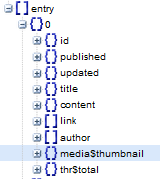
The YouTube Thumbnail is stored inside media$thumbnail

Assuming you already have read how to view your JSON feed in a human readable format, I am sharing below the steps to locate where exactly the thumbnail is stored.

1. Embed a YouTube Iframe inside your blog and publish the post.

2. Copy your new JSON code. In our case we are using a test blog and the url for its JSON feed is:

http://www.facebook-comments-box.blogspot.com/feeds/posts/default?alt=json

3. Next Navigate to JSON > feed > entry

Select the most recent post which of course is inside the element { } 0

blogger json feed thumbnail

4. Expand the node media$thumbnail to see its elements.

media thumbnail node elements

From the image above you can observe that Blogger JSON feed provides 4 basic information about the thumbnails. The important among which is the url.

  • xmlns$media:  This tag provides the link for Media RSS specification directory which provides meta data info for video clips. Currently though it points to search.yahoo.com/mrss/ but it will soon be replaced with rssboard.org/media-rss in future. Full Details
  • url: This is the Image link to the default YouTube Thumbnail. Its default size 120 X 9.
  • height: default size for height
  • width: default size for width

The thumbnail that blogger creates ends with extension default.jpg. If you replace it with 0.jpg, you will get a much larger High Quality thumbnail. We will discuss how to do it in our coming tutorial.

http://img.youtube.com/vi/ht866-K1JeU/default.jpg  (120 x 90)

default youtube thumbnail

Replace with 0.png for large thumbnails

http://img.youtube.com/vi/ht866-K1JeU/0.jpg   (480 x 360 )

Large youtube thumbnail

Need Help?

For a more advanced approach I will share the JavaScript technique in next part of this tutorial series. Let me know if you have any queries with regard to the above tutorial. I have tested vimeo videos and also dailymotion videos by embedding them in blogspot posts but so far only YouTube thumbnails are supported in Blogger.

Tuesday, 17 November 2015

Display YouTube Video Thumbnails in Blogger

Extract YouTube Video ThumbnailsWe have reached the stage of our Blogger JSON tutorial series where we will learn how to extract thumbnails from a YouTube video and display these featured thumbnails inside BlogSpot blogs recent posts widget. YouTube Data API is an excellent way to create 3rd party applications for users that could help them to search for YouTube videos, upload videos to YouTube, and update existing videos. It also helps you to retrieve playlists, favorite videos, and do much more. Since discussing YouTube API is beyond the scope of this tutorial therefore we will only discuss the thumbnails which are stored inside the tags <media:thumbnail/>. Understanding YouTube Video Feed is not our concern for this tutorial series. In this part we will first discuss the Thumbnail basic URL structure and will learn different techniques of embedding these thumbnails inside blog posts but in our next tutorial we will discuss how to dynamically show featured YouTube thumbnails inside the recent comments widget via JSON feed by retrieving the Thumbnail from the YouTube Iframe.

Note: Click the Button below to see full list of topics under discussion.

Topics List

Extract Thumbnails from a YouTube Video

Every YouTube Thumbnail has the following URL structure:

http://img.youtube.com/vi/VIDEO ID/IMAGE NUMBER.jpg

  • There are a total of 4 thumbnails available through YouTube API for each video. Each image is numbered in this sequence: 0, 1, 2, 3. Represented by IMAGE NUMBER
  • Each video has its unique ID represented by VIDEO ID.

I once uploaded a Facebook Timeline video to my YouTube channel. This video is located at

https://www.youtube.com/watch?v=tcw10SeE_VQ

Where  tcw10SeE_VQ is the video ID. This is the exact same URL structure for all videos on YouTube.

YouTube Data API stores around 4 thumbnails for each video. 3 small and one large. The thumbnails stored for the above video are located at:

http://img.youtube.com/vi/tcw10SeE_VQ/0.jpg

1st largest Full size Default thumbnail Image with dimensions 480 x 360 (pixels)

Full size YouTube Thumbnail

http://img.youtube.com/vi/tcw10SeE_VQ/1.jpg

2nd Small thumbnail Image with dimensions 120 x 90 (pixels)


Small YouTube Thumbnail

http://img.youtube.com/vi/tcw10SeE_VQ/2.jpg

3rd Small Default thumbnail Image with dimensions 120 x 90 (pixels)

Default YouTube Thumbnail

http://img.youtube.com/vi/tcw10SeE_VQ/3.jpg

4rth Small thumbnail Image with dimensions 120 x 90 (pixels)

Small YouTube Thumbnail

Embedding YouTube Thumbnails in Blog posts

Now lets suppose you want to publish a video post and you want to display the thumbnail Image of your YouTube video as the featured Image of your blog post in a SEO friendly manner. For this all you need to do is to use the following image code:

<img src=http://img.youtube.com/vi/VIDEO ID/0.jpg  width="400px" alt="Image Description"/>

  • You just need to replace VIDEO ID with the ID of your YouTube video URL
  • Note that I have selected the 1st Thumbnail image (i.e. 0.jpg) to display the largest thumbnail.
  • You can customize the width of your image by simply editing 400px. Note that the 1st thumbnail has a width of 480px.
  • Replace "Image Description" with Image Title

Display Thumbnails Dynamically

For simplicity we have only discussed the static method of embedding thumbnail images in blog posts but in our next tutorial we will discuss a JavaScript technique to extract YouTube Video Images dynamically from the blogger JSON feed and will display Video thumbnails automatically next to each post containing a video Iframe.

At present we are only sharing the technique for YouTube videos but if you guys would love to know how to extract Dailymotion or Vimeo video Thumbnails thumbnails also then let me know so that I may share those scripts with all of you.

Stay tuned for the next part which involves some interesting yet easy JavaScript programming. Peace and blessing buddies! :)

Wednesday, 11 November 2015

Resize the Default Resolution of Thumbnails in Blogger

Resizing Blogger Thumbnails As promised in part9 we are sharing today the trick to resize Blogspot thumbnails. Blogger stores media thumbnails in dimensions of 72 x 72 pixels in size. All pictures that you upload inside your blog posts are stored inside JSON feed and XML feed with 72px width and 72px height. The thumbnail images are saved originally in small square sized snapshots which if stretched out using CSS distorts the original resolution of the pictures and as a result they are displayed in poor quality resolution. In this tutorial we will fix this problem by changing the original dimensions of the picture in its URL using simple JavaScript technique and using the Recent Posts widget code that we have been using so far. It is just a one liner code and quite easy to implement.

Note: Click the Button below to see full list of topics under discussion.

Topics List

Fact
The default resolution of Blogger thumbnails can never be changed using just CSS. It requires JavaScript to modify the actual URL structure.

URL structure of Thumbnails in JSON feed

You clearly know now that thumbnails are stored inside the media$thumbnail node and have the following URL structure:

blogger thumbnail URL structure

If you observer the URL closely you will notice that each URL is assigned a parameter /s72-c/. Because of this parameter each thumbnail is assigned a default size of 72px by 72px i.e. Square image and cropped due to the parameter -c. The thumbnail thus gets a smaller size which when stretched using CSS gives a low quality image as shown below:

default blogger thumbnails

Our task is to replace this parameter with a custom variable so that the image size can be resized dynamically to any resolution we want by maintaining the aspect ratio. This will auto create a HQ thumbnail with clean and clear resolution.

The thumbnail will then appear in its original dimension with no forced width or height sizes.

thumbnail with dynamic size

The images are cropped due to the parameter  ( -c ), we will remove this to make sure the blogger thumbnails are not cropped and shown in full width.

Lets now get straight to interesting but simple coding!

Resizing Blogger Thumbnails

We will use the exact same code for recent posts widget that we shared in Part#9. All the modifications made are highlighted in pink.

<!-- ######### Writing Callback Function ############# -->
<script type="text/javascript">
//----------------------------Defaults
var ListBlogLink = window.location.hostname;
var ListCount = 5;
var TitleCount = 70;
var ListLabel =" ";
var ChrCount = 80;

var ImageSize = 100;

//----------------------------Function Start
function mbtlist(json) {
document.write('<ul class="mbtlist">');
for (var i = 0; i < ListCount; i++)
{

//-----------------------------Variables Declared
var listing= ListUrl = ListTitle = ListConten = ListContent =ListImage =thumbUrl =sk = "";
//----------------------------- Title URL
for (var j = 0; j < json.feed.entry[i].link.length; j++) {
if (json.feed.entry[i].link[j].rel == 'alternate') {
break;
}
}
ListUrl= "'" + json.feed.entry[i].link[j].href + "'";
//----------------------------------- Title Stirng
if (json.feed.entry[i].title!= null)
{
ListTitle= json.feed.entry[i].title.$t.substr(0, TitleCount);
}

//----------------------------------- Content Check

ListConten = json.feed.entry[i].content.$t;
ListContent= ListConten.replace(/(<([^>]+)>)/ig,"").substr(0, ChrCount);

//------------------------------------ Thumbnail Check

if (json.feed.entry[i].media$thumbnail)
{
thumbUrl = json.feed.entry[i].media$thumbnail.url;

sk= thumbUrl.replace("/s72-c/","/s"+ImageSize+"/");
ListImage= "'" + sk.replace("?imgmax=800","") + "'";
}

// Support For 3rd Party Images
else if (json.feed.entry[i].content.$t.match(/src=(.+?[\.jpg|\.gif|\.png]")/) != null)
{
ListImage json.feed.entry[i].content.$t.match(/src=(.+?[\.jpg|\.gif|\.png]")/)[1];
}

else
{
ListImage= "'https://blogger.googleusercontent.com/img/b/R29vZ2xl/AVvXsEhpXmaoEd8nf_mfrGK2SwDbtAkJ_XN0MqsELIme26v0X-VHhAPR_aDHLrKT9iPUjg2-vMGvnWKHZAtlUpgI8jM-5vdfxzSfKQ-Ag31ZIXks3FDJGcXbjzUBRYKUiyA7waGNDuE1NPeJX0c/s200/Icon.png'";
}


//----------------------------------- Printing List
var listing = "<li><a href="
+ ListUrl+
  "><img src="
+ListImage+
"/></a>
<a class='mbttitle' href="
+ListUrl+
"target='_blank'>"
+ListTitle+
"</a><span class='icontent'>"
+ListContent+
" ...  <a href="
+ListUrl+
" class='imore'>»</a></span>
</li>";
document.write(listing);
}
document.write("</ul>");
}
</script>
<!-- ######### Invoking the Callback Function ############# -->
<script>
ListBlogLink = "http://www.mybloggertricks.com";
ListCount = 4;
TitleCount = 70;
ListLabel = "Announcement";
ChrCount = 150;

document.write("<script src='"+ListBlogLink+"/feeds/posts/default/-/"+ListLabel+"?alt=json-in-script&callback=mbtlist'></"+"script>");
</script>
<!-- ######### Styles for Look ############# -->
<link href='http://fonts.googleapis.com/css?family=Oswald' rel='stylesheet' type='text/css'/>
<style>
.mbtlist {list-style-type:none;overflow:hidden}
.mbtlist li {margin:0px auto 20px auto; clear:both; color:#666; font-family:Helvetica; font-size:12px; border-bottom:1px dotted #ddd;padding-bottom:10px;}
.mbtlist .mbttitle {font-family:oswald; font-size:16px; color:#0080ff; font-weight:normal; text-decoration:none;}
.mbtlist .mbttitle:hover {color:#00A5FF;}
font-family:georgia; font-size:15px; font-weight:bold}
.mbtlist div span{margin:0 10px 0 0; display:inline-block;}
.mbtlist span {display:block; margin:5px 0px 0px; padding-right:5px;}
.mbtlist .imore {font-size:16px; font-weight:bold; text-decoration:none; color:#666; line-height: 0.7em;}

.mbtlist img {float:left; margin:0px 10px 10px 0px; border:6px solid #fff; padding:0px; width:80px; height:65px; box-shadow:-1px -1px 4px #777; }
.mbtlist .icontent {text-align:justify;}

</style>

How it works?

1.  We first declared a variable ImageSize  to dynamically adjust the image size parameter from /s72-c/  to /s100-c/. 100px here means /s100-c/ i.e. 100px X 100px.

Note that image size can easily be changed using CSS as well like we have done (i.e. width:80px; height:65px). The CSS image size must always be less than or equal to ImageSize but not greater than it else the resolution will collapse. Normally thumbnails are displayed in size of 100px by 100px, if you want much larger thumbnails you can surely increase the value for ImageSize. and then customize the width and height using CSS like we did.

2. We then declared another variable sk and set it to null.

3. The third most important step is:

sk= thumbUrl.replace("/s72-c/","/s"+ImageSize+"/");

Here we first used the JavaScript replace () method to replace s72-c with ImageSize. We then saved this new Image URL inside sk. We also removed the parameter -c to prevent images from getting cropped.

4. Finally we removed the parameter ?imgmax=800 from the Image URL inside sk using the replace method and saved the new clean URL inside ListImage

Normal Size

recent posts with small thumbnails


Custom Size

I made these changes:

  • set ImageSize to 150px
  • set width to 130px and height to 90px

recent posts with large thumbnails

See no loss in image quality even if you stretch it to 500px!

Update: Prevent Cropping of Images

To make sure images are not cropped we removed the parameter -c from /s72-c/. The thumbnails will now look like this:

uncropped blogger thumbnails

Need Help?

Let me know if you need any assistance till this part of the tutorial series. Do post your questions and let us know if you found any part confusing. In our coming tutorials we will cover Dynamic sliders, carousels and all sorts of animated widgets and much more. This is just the trailer! =>

Peace and blessings buddies! :)

Tuesday, 10 November 2015

Display Recent Posts With Third-Party Thumbnails Support

Recent Posts widget with Third Party Blogger ThumbnailsEvery picture that you upload in Blogger editor gets saved in Picasa Web album. Only uploaded images are stored inside the { }media$thumbnail Object in the JSON feed. This is one reason why many recent posts widget work well when your posts contain images that you have uploaded to blogger from your computer but the same widget fails to display a thumbnail when you have embedded a YouTube video or image (hosted externally) inside your blog post. This tutorial helps you understand how to extract the thumbnail URL for both Picasa hosted images and 3rd Party images from Blogspot json feed.

Note: Click the Button below to see full list of topics under discussion.

Topics List

Path of Media Thumbnails in JSON Post Feed

There are two ways to extract the Blogger Thumbnail URL from JSON.

1. Extract the Picasa Hosted Thumbnails

By Picasa hosted images I refer to images uploaded inside blogger editor. When you upload a picture from your computer to Blogger, that image is stored inside Google Picasa Image hosting service.

Note: The Image that you add to the beginning paragraph is often picked as your post thumbnail or featured image.

All these images gets an exclusive space in JSON feed because they are assigned a separate object node by the name media$thumbnail inside the item entries i.e. [ ] entry as shown below:

media Thumbnail object

The image link is stored inside the node url as shown below:

image

The path would therefore be:

json.feed.entry[i].media$thumbnail.url

Which means Go To json > feed > entry array > media thumbnail > finally url

2. Extract 3rd-Party Images as Thumbnails

If in case you have not uploaded an image from your computer to blogger and instead you have embedded an image which is hosted on some third-party hosting service then it means Blogger will not be able to recognize your Featured Image or Featured Thumbnail, as a result the media$thumbnail node will contain no value at all and it will simply disappear. In this case, we will need to search for a thumbnail using the Post { }content node which contains the entire HTML of your post body i.e. <data:post.body/>.

media Thumbnail node absent


Therefore we will instead search for the 3rd-Party image inside the Post content node as shown below:

Content with Images

The benefit that we get here is that you can display images as thumbnails from any hosting platform online, whether your images are hosted on your server or on some free image hosting service like Flickr, photobucket etc.

Our json path would thus be:

json.feed.entry[i].content.$t

Display Featured Thumbnails in Recent Posts Widget

Now comes the coding part. We will use the exact same script that we have shared in part 8. Major modifications made have been highlighted in Orange with white text.

<!-- ######### Writing Callback Function ############# -->
<script type="text/javascript">
//----------------------------Defaults
var ListBlogLink = window.location.hostname;
var ListCount = 5;
var TitleCount = 70;
var ListLabel =" ";
var ChrCount = 80;

//----------------------------Function Start
function mbtlist(json) {
document.write('<ul class="mbtlist">');
for (var i = 0; i < ListCount; i++)
{

//-----------------------------Variables Declared
var listing= ListUrl = ListTitle = ListConten = ListContent =ListImage =thumbUrl = "";
//----------------------------- Title URL
for (var j = 0; j < json.feed.entry[i].link.length; j++) {
if (json.feed.entry[i].link[j].rel == 'alternate') {
break;
}
}
ListUrl= "'" + json.feed.entry[i].link[j].href + "'";
//----------------------------------- Title Stirng
if (json.feed.entry[i].title!= null)
{
ListTitle= json.feed.entry[i].title.$t.substr(0, TitleCount);
}

//----------------------------------- Content Check

ListConten = json.feed.entry[i].content.$t;
ListContent= ListConten.replace(/(<([^>]+)>)/ig,"").substr(0, ChrCount);

//------------------------------------ Thumbnail Check

if (json.feed.entry[i].media$thumbnail)
{
thumbUrl = json.feed.entry[i].media$thumbnail.url;
ListImage= "'" + thumbUrl .replace("?imgmax=800","") + "'";
}

// Support For 3rd Party Images
else if (json.feed.entry[i].content.$t.match(/src=(.+?[\.jpg|\.gif|\.png]")/) != null)
{
ListImage json.feed.entry[i].content.$t.match(/src=(.+?[\.jpg|\.gif|\.png]")/)[1];
}

else
{
ListImage= "'https://blogger.googleusercontent.com/img/b/R29vZ2xl/AVvXsEhpXmaoEd8nf_mfrGK2SwDbtAkJ_XN0MqsELIme26v0X-VHhAPR_aDHLrKT9iPUjg2-vMGvnWKHZAtlUpgI8jM-5vdfxzSfKQ-Ag31ZIXks3FDJGcXbjzUBRYKUiyA7waGNDuE1NPeJX0c/s200/Icon.png'";
}


//----------------------------------- Printing List
var listing = "<li><a href="
+ ListUrl+
  "><img src="
+ListImage+
"/></a>
<a class='mbttitle' href="
+ListUrl+
"target='_blank'>"
+ListTitle+
"</a><span class='icontent'>"
+ListContent+
" ...  <a href="
+ListUrl+
" class='imore'>»</a></span>
</li>";
document.write(listing);
}
document.write("</ul>");
}
</script>
<!-- ######### Invoking the Callback Function ############# -->
<script>
ListBlogLink = "http://www.mybloggertricks.com";
ListCount = 4;
TitleCount = 70;
ListLabel = "Announcement";
ChrCount = 150;

document.write("<script src='"+ListBlogLink+"/feeds/posts/default/-/"+ListLabel+"?alt=json-in-script&callback=mbtlist'></"+"script>");
</script>
<!-- ######### Styles for Look ############# -->
<link href='http://fonts.googleapis.com/css?family=Oswald' rel='stylesheet' type='text/css'/>
<style>
.mbtlist {list-style-type:none;overflow:hidden}
.mbtlist li {margin:0px auto 20px auto; clear:both; color:#666; font-family:Helvetica; font-size:12px; border-bottom:1px dotted #ddd;padding-bottom:10px;}
.mbtlist .mbttitle {font-family:oswald; font-size:16px; color:#0080ff; font-weight:normal; text-decoration:none;}
.mbtlist .mbttitle:hover {color:#00A5FF;}
font-family:georgia; font-size:15px; font-weight:bold}
.mbtlist div span{margin:0 10px 0 0; display:inline-block;}
.mbtlist span {display:block; margin:5px 0px 0px; padding-right:5px;}
.mbtlist .imore {font-size:16px; font-weight:bold; text-decoration:none; color:#666; line-height: 0.7em;}

.mbtlist img {float:left; margin:0px 10px 10px 0px; border:6px solid #fff; padding:0px; width:80px; height:65px; box-shadow:-1px -1px 4px #777; }
.mbtlist .icontent {text-align:justify;}

</style>

Here are important points that make the magic work!

   1. First we declared two variables ListImage and thumbUrl  assigned their values to empty.

   2. Then we ran the first loop:

if (json.feed.entry[i].media$thumbnail)
{
thumbUrl = json.feed.entry[i].media$thumbnail.url;
ListImage= "'" + thumbUrl .replace("?imgmax=800","") + "'";
}

The loop first checks if the media$thumbnail node is present or not. If present it runs the command else it will pass the pointer to the next loop that I will discuss in step 3. First we fetched the thumbnail URL from the node and stored it inside the variable thumbUrl . Next we removed the parameter value (?imgmax=800) from the image URL in order to prevent the fixed resolution and instead pick the highest/original resolution URL of the thumbnail. We stored the final URL value inside ListImage

Note:
In our next tutorial, we will discuss how to resize the default 72x72 resolution of thumbnails to a high quality resolution so we could customize the dimensions of the images.

   3. If in case no featured image hosted at picasa was found, the script will run another loop to look for a thumbnail inside the content node:

else if (json.feed.entry[i].content.$t.match(/src=(.+?[\.jpg|\.gif|\.png]")/) != null)
{
ListImage = json.feed.entry[i].content.$t.match(/src=(.+?[\.jpg|\.gif|\.png]")/)[1];
}

else
{
ListImage= "'https://blogger.googleusercontent.com/img/b/R29vZ2xl/AVvXsEhpXmaoEd8nf_mfrGK2SwDbtAkJ_XN0MqsELIme26v0X-VHhAPR_aDHLrKT9iPUjg2-vMGvnWKHZAtlUpgI8jM-5vdfxzSfKQ-Ag31ZIXks3FDJGcXbjzUBRYKUiyA7waGNDuE1NPeJX0c/s200/Icon.png'";
}

Here first we will check if an image exists inside the post content or not. If it does exist the script will continue running sequentially and scan the entire post for images which matches the following extensions: .jpg, .gif, .png . We have done this using the JavaScript match method:

 match(/src=(.+?[\.jpg|\.gif|\.png]")/)[1]

The array value [1] at the end of this method means that the script should pick only the first embedded image from the Post body and ignore other images. Thus we can extract the Featured Thumbnail

If no image was found inside the post then a default image will be considered as the thumbnail.

Default Featured Thumbnail

4. Next comes the printing part. The image code is inserted inside the printing variable as shown below:

<a href="
+ ListUrl+
"><img src="
+ListImage+
"/></a>

The image is linked to the Post URL i.e. ListUrl

5.  We then finally added some CSS styles to make the Thumbnail float to the left of the list and look out standing!

The end result is a List of your Blog's recent Posts with thumbnails and specified Label:

OUTPUT:

Recent Posts Gadget with Thumbnails

Need help?

Let me know if you need help in any part of this tutorial. This tutorial series is for learning purpose only and we are trying our best to make it as simple as possible. It is not a copy-paste process or some widget trick. It is a comprehensive guide to Blogger JSON API that is first time shared online Alhamdulillah to help you excel every art of Blogspot Blogs and help you build better gadgets and templates.

In our coming tutorials we will add support for YouTube thumbnails and Custom Image size. Stay tuned, there is more to come buddies! :>