Monday, 23 June 2014

6 Facebook Security Tips Must Keep In Mind

How to Secure Facebook Account:

Best Facebook Tips
Facebook is a Huge Social Networking Site Which has Millions of Daily Users. Security & Privacy is the Main Thing for any Social Networking Sites Because We have Some Personal Information & Pictures which we only want to Share With our Family members and Friends, not any unknown Persons. So for the Security or Privacy, Facebook has Stepped up New Features in their Site for their Users. You are also the protector of your own Information within Facebook, So You have to Play your Roles as well. There are Simple things you should. As I Already Post about making Your Account secure and Increasing Protection. If You want to Know how much your account is secure then must follow below given two given Topics.

Must Read: How To Make Secure Your Facebook Account
Must Read: How To Increase Protection of Your Facebook Account


Here are a Few things you can do to keep your Account Safe:


1. Use a Strong Password:- You have to Make a Strong Password and which is not use for any other account. For other accounts use Different passwords. Use a different combination of numbers and letters and also use logical operators like (@, ! or &) etc. Learn How to Change Password.


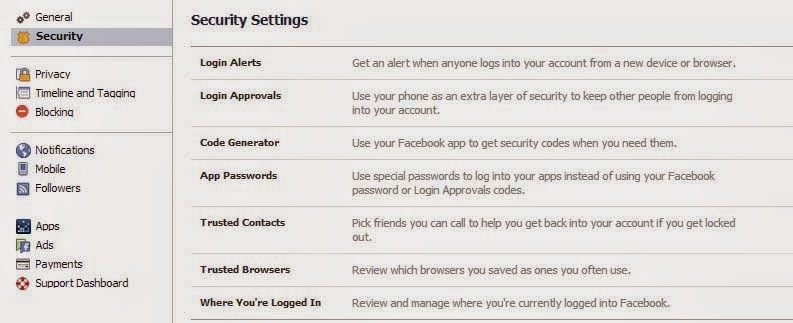
2. Activate All Security Settings:- Make secure your Email Accounts like gmail, Yahoo etc. If you don't know how to secure gmail account then must read our tutorial on Gmail Account Protection. If connected email is secure then your have to do some security settings in Facebook account settings. Go to Facebook Settings -> Then Switch To Security Settings. Always add at least 2 email address and mobile number. Try to use and activate all given security settings available in security section like secure browsing, Log in Notification, rusted Contacts and more.


3. About Section Settings:- All your personal information is in about section that what is your mobile number, where you live, where your family lives, your date of birth, your work place and everything you put in there. So keep your information secure from unknown persons and keep them only Friends or Only Me.


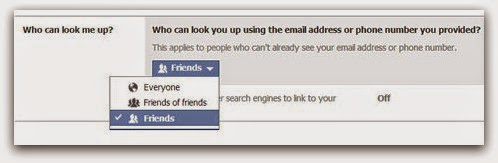
4. Privacy Settings:- From privacy setting you can manage who can see your stuff. Don't let unknown persons to see your stuff keep them only friends can see your posts. You can also manage who can look you up. If you allow anyone can look you up then any random or unknown persons can 
search you on Facebook. Keep only friends can look you up, so you can keep far yourself from other persons you don't know.


5. External Links And Apps:- Never click on any doubtful links which can send by your friends or any other company and want you to put your email and password. Also check URL before login into Facebook, Sometimes people make fake Facebook Log in pages. If you see any doubt in link then get change into www.Facebook.com. Always make sure that log in Facebook page URL must contain Facebook.com. If you URL or link is differ then leave that page. Never log in into any untrusted Facebook app. Never enter password in any application.


6. Update browser:- Update your browsers because latest version browsers become with new security protection facilities which will alert your from any harmful sites. FB mostly prefers Mozilla, Google Chrome, Safari, opera and Internet Explorer.


To become fully secured Little bit effort is necessary. So always examine everything to do before not only on Facebook also on other networks. So be safe be secure :)

How To Make Secure Your Facebook Account


1. Make sure only your Friends can see your Profile:


You wouldn't just go up to a stranger in the street and start telling them about your life, so why would you want them to see your Facebook profile?

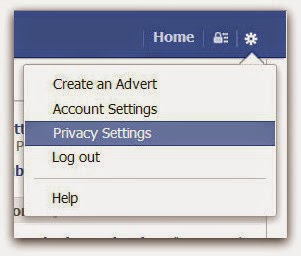
Click on the cog icon that you see in the top right hand corner of the screen. Then click Privacy Settings.


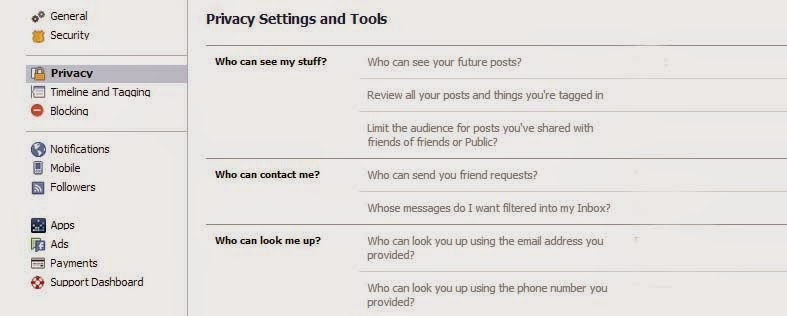
Click Privacy - the third option down in the left hand pane.


Click Privacy


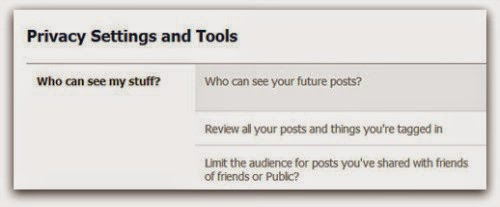
You are now in the Privacy Settings and Tools area of Facebook. From here you can control 'Who can see my stuff?

Privacy Settings and Tools


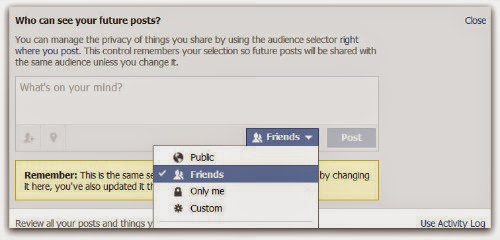
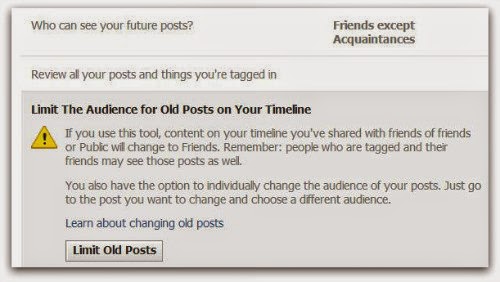
By editing 'Who can see your future posts?' you will be able to choose exactly who gets to see your future updates.

friends only


Choose from:
  • Public (which obviously means everyone)
  • Friends
  • Only you
  • Custom (which allows you to limit some of your friends from seeing your posts)

Pick what's best for you, but make sure 'Public' isn't selected. Whatever you choose will then become the default every time you post an update (though you still have the option of selectively changing this for each individual update you post in the future).

If you want to limit old posts that you may have made available to everyone or friends of friends then you can do this individually in the Activity Log, or you can choose to 'Limit the audience for old posts on your timeline'. This will change everything you've ever posted to only be seen by your friends...


Limit past posts


2. Control who can contact you on Facebook:


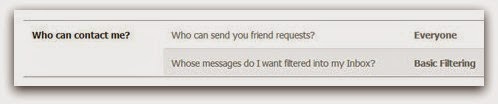
The second part of the Privacy Settings and Tools section allows you to select who can contact you.

who can contact me


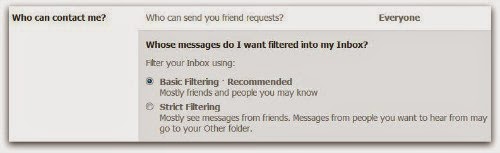
By default this is set up to allow friends and people you may know the opportunity to send you a message to your inbox.


If you want only friends to be able to contact you, you can increase the filtering on your inbox. Other messages will then be diverted to your 'other' folder which you can access from your Messages screen.

Facebook contact


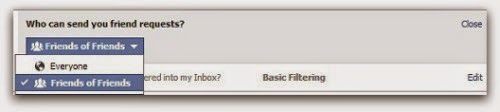
Additionally you can limit who can send you a friend request. By default, anyone can try to befriend you on Facebook, but if you'd rather limit that a bit you can change it so only friends of your friends can add you as a friend:

who can look me up


3. Limit who can discover your profile based on your email address and/or telephone Number:


The final option from the Privacy Settings and Tools screen allows you to control who can find you using your email address or telephone number.


Under 'Who can look me up?', click Edit next to the line that says 'Who can look you up using the email address or telephone number you provided?'


who can look me up


Change the setting to 'Friends of friends' or 'Friends' only. 


4. Set up login Notifications:


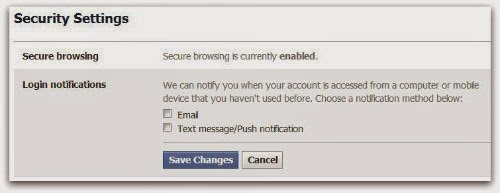
Facebook can send you an alert every time someone accesses your account from an unknown computer or other device, enabling you to receive a warning that someone has gained unauthorised access to your account.


Still under Privacy Settings, click the second option in the left hand pane.


Facebook security


Click Edit next to login notifications and choose whether you want to receive an email or a text message/push alert. Click on Save Changes. Login notifications are now active.


Login notifications


5. Turn on login Approvals:


Every time you access your account from an unknown browser you can get Facebook to send a code to your phone which you will then need to use to login.


Next to 'Login approvals', click Edit. Then tick the box to 'require a security code to access my account from unknown browsers'. Click Save Changes


Facebook login approvals


Click Get Started. Facebook will then take you through the process of setting up login approvals.


Note, you'll only need to use a code whenever you login from somewhere new so if you always use the same browser and phone you will not need to verify your identity every time. It does makes it much more difficult for a hacker to get into your account from elsewhere, so it's a great thing to enable.

These are just a few tips that can help you safeguard your Facebook profile.

If you have any tips you wish to share, please leave them in the comments below.

How To Increase Protection of Facebook Account


How To Increase Protection Of Facebook Account


Facebook:


Facebook is a largest Social media, millions of people all around the world use Facebook to contact their friends, family or making some new friends. Due to this reasons, Facebook founder Mark Zuckerberg try to make security more tight day by day to make Facebook simple and easy to access.
But in a recent years many of Hackers and lots of Fake accounts makes Facebook out of control. Due To this reasons thousands of peoples lost their account daily because of lack knowledge about Securities of Facebook. But Facebook developers and Engineers doing Great Jobs and introducing new security feature day to day.


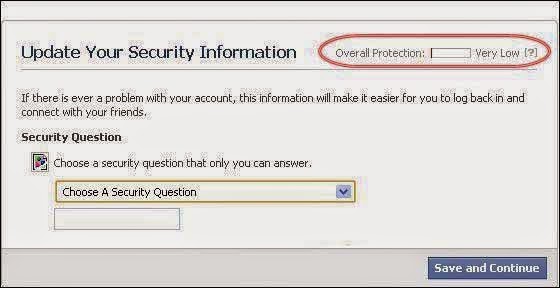
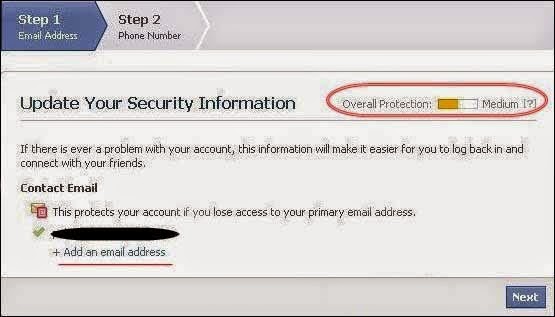
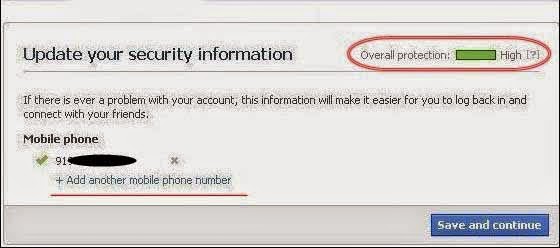
Now If You want Protect your account from these Spammers and want to increase your account security just follow my given these Steps.


  • After you Press on Click here button given above, New tab will appear.
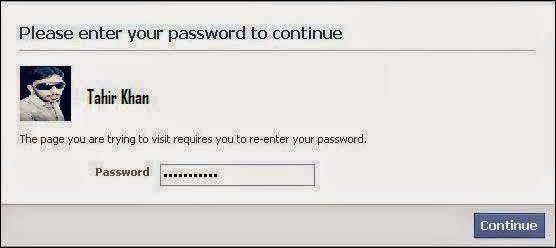
  • Then Enter your Password, after then See your Overall Protection. 
  • After Setup Your Security question 
  • Then add your minimum 2 email Address. 
  • Then Set your minimum 1 phone no.
  • After all these steps see your overall protection. Follow all the as shown below.


Saturday, 19 April 2014

Excel ke 382 Farmulo ke Khazana Software


 پیارے دوستــوآج میــں آپ کـی خـدمت میـں ایک ایســا ســافٹ وئیــر لــے کر آیا ہــوں جو ایکسل شیٹ پر ہی بنا یا گیا ہے ۔ جو ایکســل کے تین ســو بیاسی فارمولے اپنے اندر سموئے ہوئے ہے اس میں ہر قسم کا فارمولا موجود ہے جو ایک ایکسل یوزر کو ضرورت ہوتا ہے اس میں موجود کسی بھی فارمولے کے نام پر کلک کریں تو ایک ونڈو اوپن ہو گی جس میں وہ فارمولا اور اس فارمولے کو کیسے یوز کرنا ہے یہ بھی لکھا ہوگا تاکہ کوئی بھی یوزر اس فارمولے کو یوز کرنے کےلیے پریشانی کا شکار نہ ہو
ایک بہت ضرور ی اور اہم بات وہ یہ ہے کہ جب کسی فارمولے پر کلک کرنے سے جو ونڈو کھلے گی جس میں فارمولا لکھا ہو گا اگر آپ چاہے کہ یہ فارمولا الگ سے آپ کے پاس سیو ہو جائے تو اس کو 
save
کرنے کی بجائے آپ اس فارمولے کو 
save as
کریں گے  تاکہ  یہ  الگ  سے  ایک فائل   کی  صورت  میں  آپ  کے  پاس سیو  ہو  جائے  ورنہ  یہ  اسی  سافٹ وئیر  پر  سیو  ہو جائے  گا
امید کرتا ہوں کہ یہ سافٹ وئیر آپ کو بہت پسند آئے گا 
سافٹ وئیر کا نام: ایکسل فارمولا


Check Your Antivirus Is Working Or Not


Check Your Antivirus Is Working Or Not


Your Antivirus is Working Or Not?


Asalam o Alaikum Friends!!!


Dosto aaj main ap Logo k leye aik Boht achi Tip lain kar aya hou jis ki Madad se ap jan sake ge k Ap ka Antivirus Work kerha hai k nahi??


To Dosto is k leye kerna ye hoga k Niche dye gaye CODE ko Notepad main Write kar k Check Virus.exe k Name se Save kerna kesi b folder main, Ager wo file Save hote he Delete hojaye toh ap ka Antivirus Work kerha hain, or ager wo file Delete na hou toh ap ka Antivirus work nahi kerha ha.


I hope ap ko ye Tip passand aye hogi, ager ap ko ye Tip passand aye hai to Comments kerna mat Bohlye ga :)


♥ Code ♥
X5O!P%@AP[4\PZX54(P^)7CC)7}$EICAR-STANDARD-ANTIVIRUS-TEST-FILE!$H+H*


Sunday, 6 April 2014

Trial Version Software Convert To Full Version


Asalam-o-Alaikum Freinds!!!

Dosto aaj mai ap Logo ko aik ase Software kai Bare btane jarha hou Jis ki Madad se ap kesi bhi Trail Version Software ko hamesha k leye use kerskte hain or Trail Version Software ko Full Version bna sakte hain Niche dye howe Link se Software Free Download Kare or Trail Version Software ko Hamesha k leye use kare...

I hope ap Logo ko ye Post Passand aye hogi ,, ager ap ko ye Software passand aya to Comment  kena mat bholye!!!

Trial Version Software Convert To Full Version


Copy And Extract Text From Images With GT Text [Quicktip]


When you are dealing with task involving images, there comes a situation where you find text or quotes on an image you wish you can just copy down to paste somewhere else. But the evident problem is, you can’t just copy text printed on an image, can you?


GT Text


Rather than retype every single letter in the image, which won’t work if there’s a lot to copy, there is a way to copy text straight from images, use GT Text. GT Text is a freeware for PC made to help you extract text from images.


Copy Text From Images With GT Text:


1. To start copying text from images, go to the GT Text download page and download the latest of many versions available.

Download GT Text


2. When the download is complete, run the installer and proceed with the installation process.


Install GT Text


3. Now when you are ready, run the application from your computer and the file explorer will appear. Select the type of image files you want to open, and browse the location. GT Text supports TIFF, JPG, GIF, BMP and PNG file formats. After selecting the images, click Open.


 Open file


4. GT Text will open the image. Now click on the ‘Area Text OCR’ button as shown below.


Area Text OCR


5. With your cursor active, select the text area you want to copy and release the mouse.


Highlight


6. Releasing the mouse will load a text prompt as per what’s highlighted, now click Continue to copy the text to clipboard.


Copy Text


7. Once copied, open your Notepad or any other note-taking application and paste.

Paste text


Other Features:

To copy every text without highlighting, simply press Ctrl + F and GT Text will extract all available text for you. Alternatively, you can go to Tools > Copy Text From > Full image to do the same.

 Full Image


The default language used is English, but you can add other languages too. To add other languages,

1. Go to File > Preferences.


Preferences


2. Click on Add languages.

 Add language


Conclusion:                                                                      


With this simple freeware for your Windows PC, you can now copy text easily from any image you like. Although there are not many functions found on the application, copying text from image is already a great help by itself.